RDP clients for Android: what to choose, how to connect, and how to configure security
This guide helps you choose the best RDP client for Android and shows how to connect safely to Windows servers, RDS/AVD desktops, and Windows 365 from a phone or tablet.
If you need a server for remote work, order a ready-to-use Windows VPS with RDP access and start connecting in minutes.
Why Use RDP on Android?
Access a Windows VPS / server and RDS/AVD desktops from your phone or tablet.
Make urgent edits in CMS/1C/corporate applications when you don’t have your laptop handy.
Support customers: log into the server, restart a service, and view logs.
The Android app is only a client. The server side (Windows Server/Pro + RDS/AVD/Windows 365) must be configured correctly: RDP enabled, NLA active, and accounts created with the required permissions. Note: Windows Home does not support incoming RDP connections — use VNC or another technology instead.
What to Look for When Choosing a Client
Official status and support: update frequency, compatibility with AVD/Windows 365/RDS.
Usability: gestures/mouse/keyboard, tablet and DeX modes, external monitors (important for Parallels).
Features: clipboard/audio, multi-session, managing multiple connections and secrets.
Price: free vs Pro/enterprise (aRDP Pro, Parallels with RAS).
Recommended Clients: What to Choose for the Task
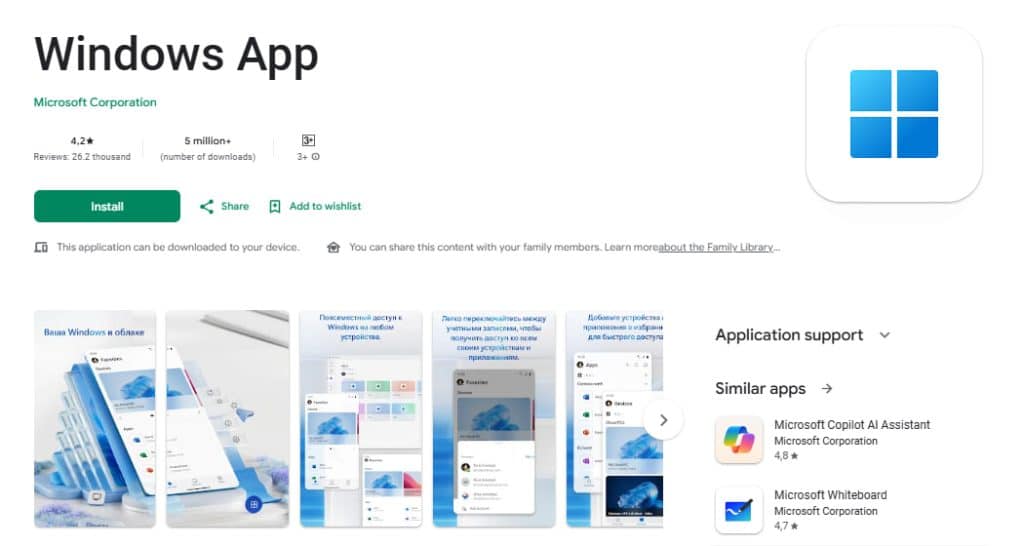
1) Windows App (Official Microsoft Client)
The official way to connect to Remote Desktop Services, Azure Virtual Desktop, and Windows 365. It’s regularly updated, supports modern features, and works on Android 11+.
Pros: free, stable, NLA, multi-touch, audio/video, Chromebook support. Cons: fewer advanced “management” features than professional toolsets.
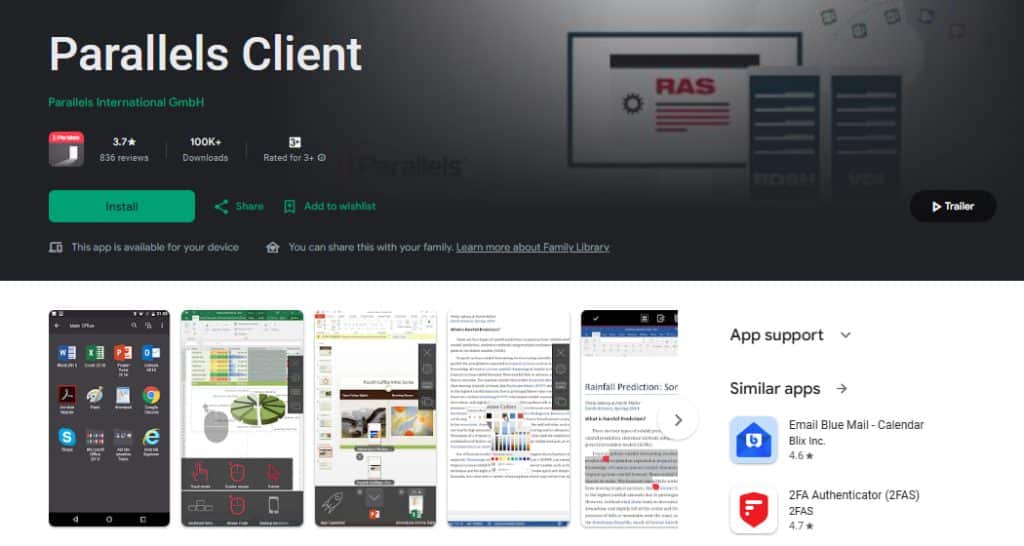
2) Parallels Client (Android) — When You Have Parallels RAS
Designed for Parallels RAS: secure access to corporate apps/VDI, printing, centralized management, SAML/LDAP, and external monitor support (v17.1+).
Pros: strong corporate features and a mature ecosystem. Cons: real value is unlocked mainly with RAS infrastructure.
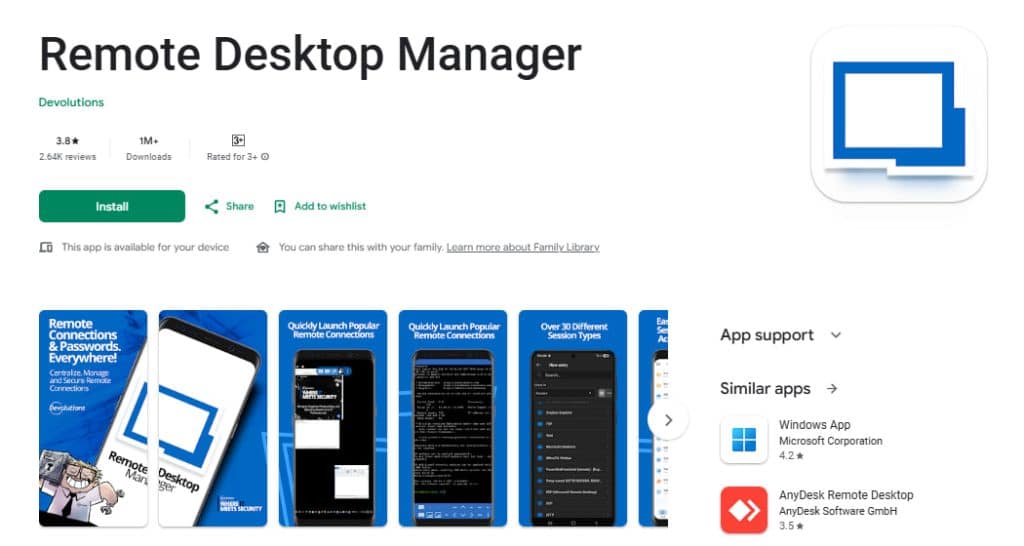
3) Remote Desktop Manager (Devolutions) — All-in-One for Professionals
Not only an RDP client, but also a connection and secrets manager: RDP/VNC/SSH and more, plus integrations with password managers and IAM, RD Gateway support, and automation/CLI workflows.
Pros: centralized control for many endpoints. Cons: a steeper learning curve for beginners.
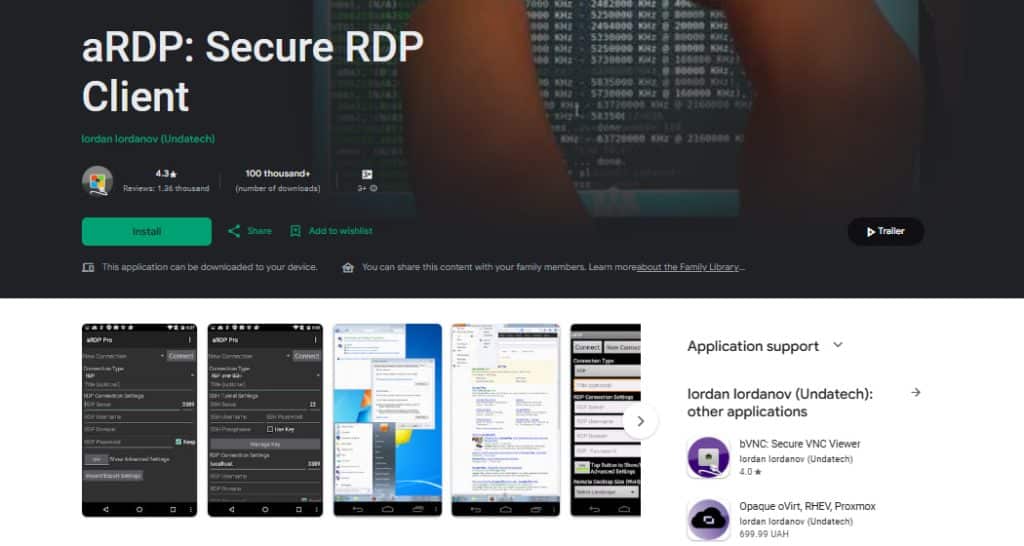
4) aRDP (Free, Open-Source) and aRDP Pro
A lightweight client based on FreeRDP/aFreeRDP, supports SSH tunneling and offers flexible settings. The app description typically notes that Windows Home cannot act as an RDP server — use VNC/bVNC instead. The Pro version adds more gestures/permissions and removes ads.
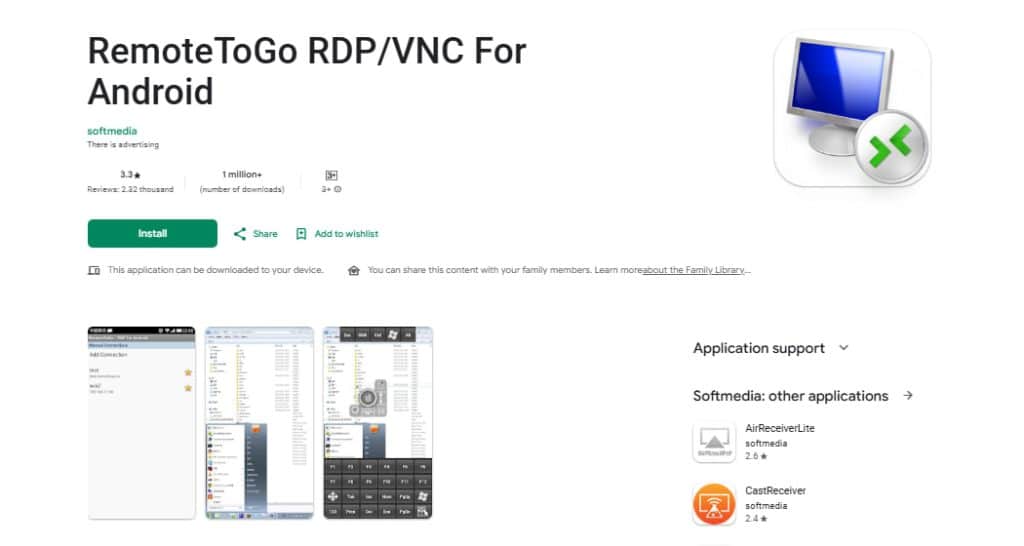
5) RemoteToGo — A Simple Alternative (RDP/VNC)
Supports both RDP and VNC. Easy to set up, but the interface is more old-school. It’s based on FreeRDP and usually has a basic update history in app stores.
Step by Step: Connecting via Windows App (Android)
This example is suitable for VPS/servers with RDP and NLA enabled. For AVD/Windows 365, use the Workspace feature in the app.
Install Windows App from Google Play and open it.
Tap Add PC → enter the server IP/domain and username in the format DOMAINuser or user@domain (if using AD/domain).
Make sure NLA (Network Level Authentication) is enabled on the server. It encrypts the handshake and requires authentication before the session starts.
Save the profile → tap the connection card → confirm the server certificate on first connect (or install your own certificate).
What else is available in Windows App:
Workspaces (AVD/Windows 365) — add the workspace URL to get published apps and desktops.
To provide the best experiences, we use technologies like cookies to store and/or access device information. Consenting to these technologies will allow us to process data such as browsing behavior or unique IDs on this site. Not consenting or withdrawing consent, may adversely affect certain features and functions.
Functional
Always active
The technical storage or access is strictly necessary for the legitimate purpose of enabling the use of a specific service explicitly requested by the subscriber or user, or for the sole purpose of carrying out the transmission of a communication over an electronic communications network.
Preferences
The technical storage or access is necessary for the legitimate purpose of storing preferences that are not requested by the subscriber or user.
Statistics
The technical storage or access that is used exclusively for statistical purposes.The technical storage or access that is used exclusively for anonymous statistical purposes. Without a subpoena, voluntary compliance on the part of your Internet Service Provider, or additional records from a third party, information stored or retrieved for this purpose alone cannot usually be used to identify you.
Marketing
The technical storage or access is required to create user profiles to send advertising, or to track the user on a website or across several websites for similar marketing purposes.