
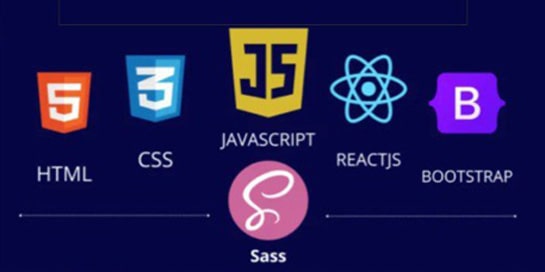
Web development is the process of creating websites and web applications. Not every step is “programming” in the strict sense: building page templates (layout) is usually done with HTML and CSS, while interactivity is built with JavaScript. Server configuration and hosting management often looks more like system administration.
This guide explains the role of HTML, CSS, and JavaScript, how client-side differs from server-side development, what tools beginners need, and how hosting (shared hosting vs VPS) affects real projects.
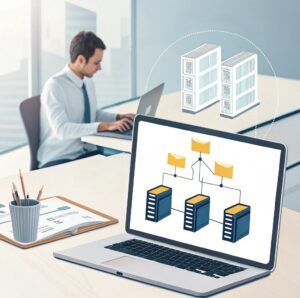
When your project moves beyond static pages (databases, user accounts, APIs), consider VPS hosting on Linux VPS or Windows VPS depending on your technology stack.
HTML (HyperText Markup Language) describes what elements exist on a page: headings, paragraphs, images, lists, links, forms, and metadata. Search engines and browsers rely on proper structure to index and display content correctly.
<!-- A simple page structure -->
<h2>Product overview</h2>
<p>Short description of the product and key benefits.</p>

<ul>
  <li>Fast delivery</li>
  <li>Secure checkout</li>
  <li>Warranty included</li>
</ul>

<a href="/vps-hosting/">Choose VPS hosting</a>CSS controls how content looks: colors, spacing, fonts, grids, responsiveness, and (to a degree) animations. HTML is the structure, CSS is the presentation layer.
/* Make text readable and buttons clear */
body { font-family: Arial, sans-serif; line-height: 1.6; }
h2 { margin: 0 0 12px; }
.button { padding: 12px 16px; border-radius: 8px; display: inline-block; }

/* Responsive rule example */
@media (max-width: 768px) {
  .grid { display: block; }
}JavaScript (JS) enables interactive behavior: dynamic forms, live search, sliders, cart updates, and real-time dashboards. JS can run in the browser (client-side) and also on servers (server-side) depending on the stack.
// Simple click tracking (example)
document.querySelectorAll('.buy-button').forEach(btn => {
  btn.addEventListener('click', () => {
    console.log('Buy button clicked');
  });
});Understanding “where code runs” helps you build faster and more secure projects.
| Part | Runs on | Typical tasks |
|---|---|---|
| Client-side | User’s browser | UI rendering, interactions, input validation, dynamic updates |
| Server-side | Your hosting/server | Authentication, database access, business logic, API responses, email sending |
| Database | Server storage layer | Store users, orders, content, logs |
You don’t need expensive tools to start. The essentials are:

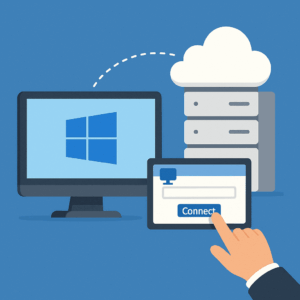
Need a Windows environment for development tools or Microsoft-based server apps? A Windows VPS provides remote access and a predictable server environment for building and hosting your projects.